

Steps to set Keyclaok as an OIDC identity provider
1
Navigate to the Clients view within your Keyclaok Dashboard.
2
Click on Create Client.
3
Select OpenID Connect as the Client Type, and give the client a Client IDand a Nameand then click on Next.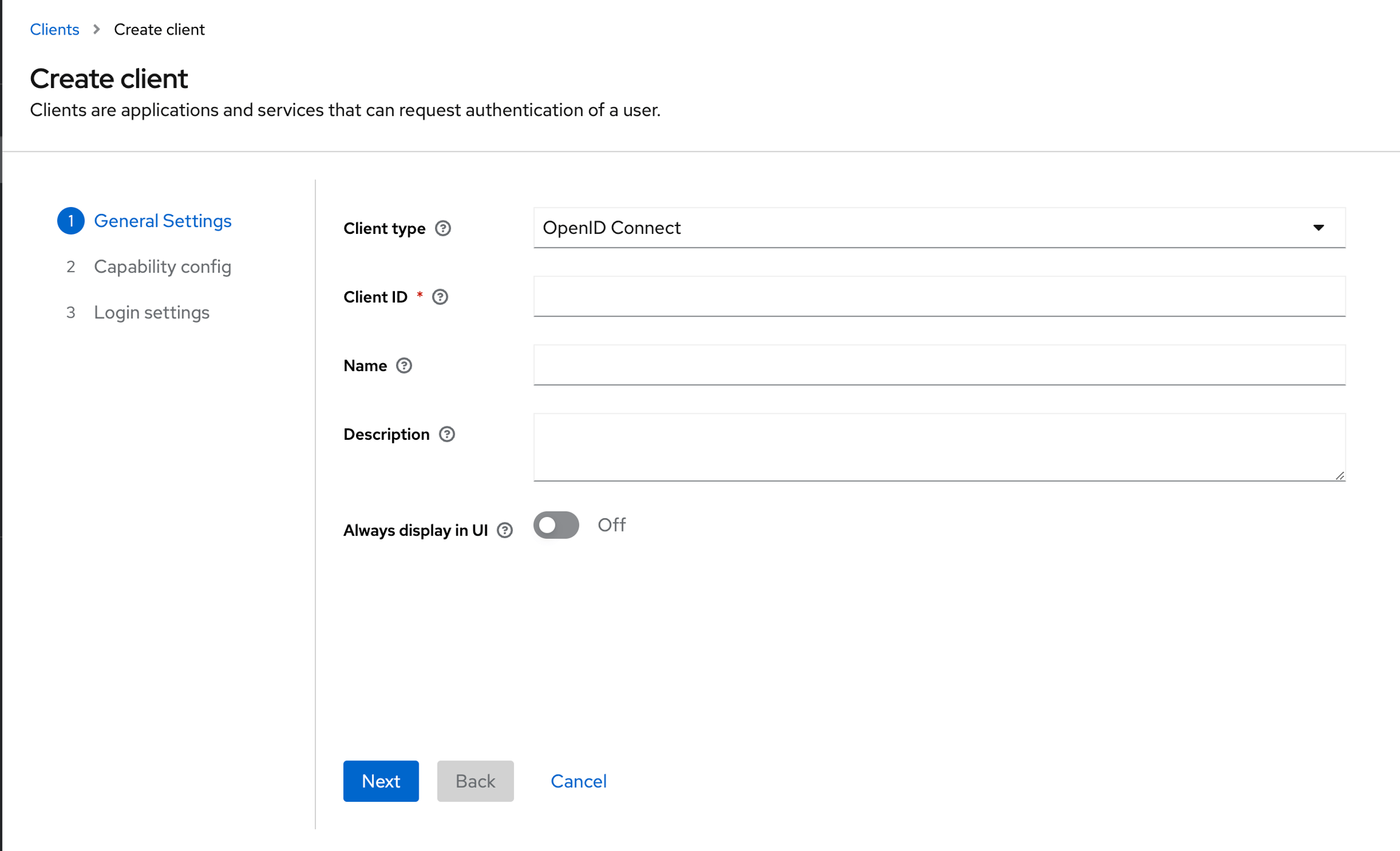
4
Enable Client authentication, then click on Next and then click on Saveon the next page.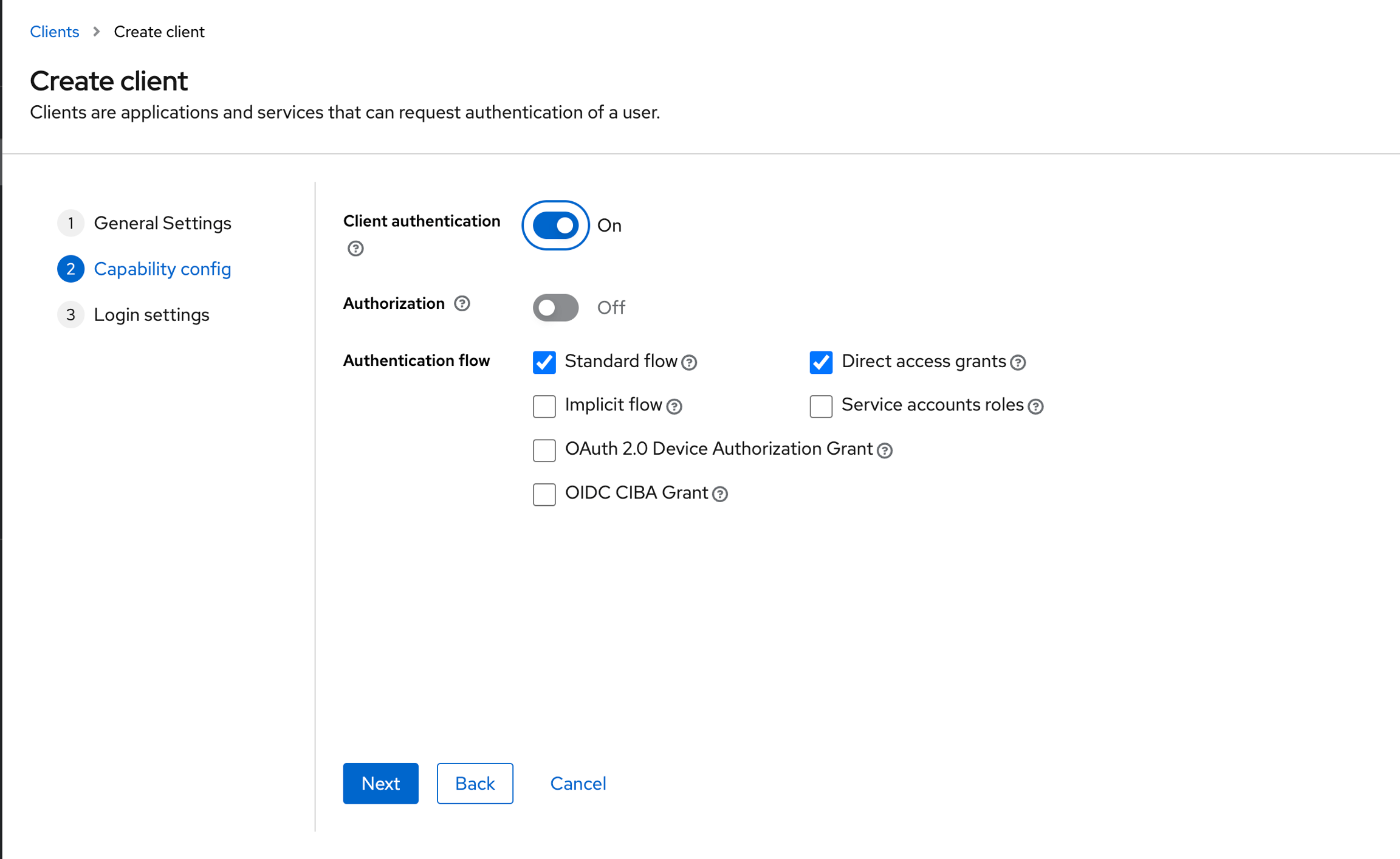
5
Navigate to the Credentials tab and then copy the Client Secret.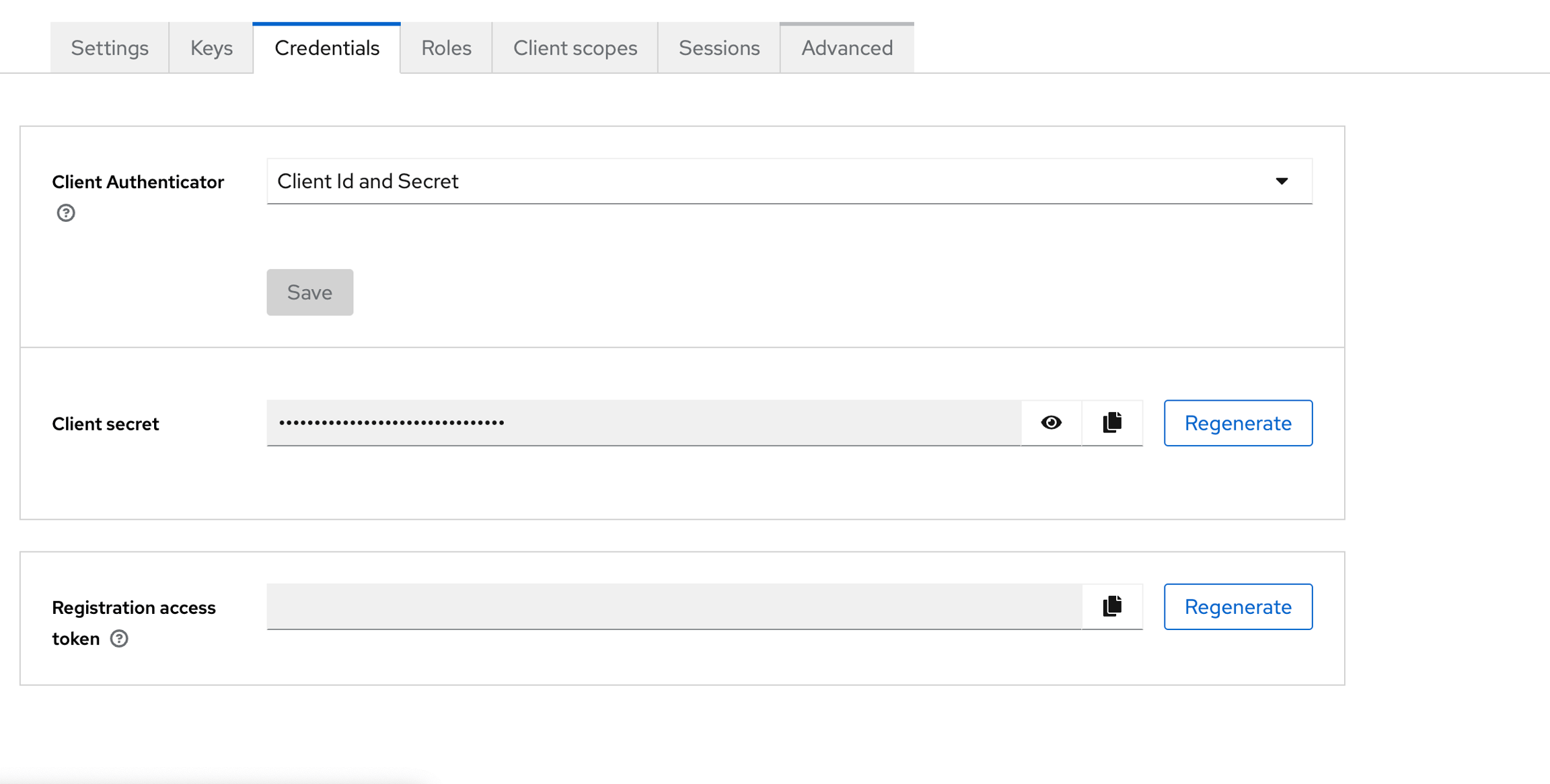
6
Navigate to the Realm Settings and then copy the link of OpenID Endpoint Configuration.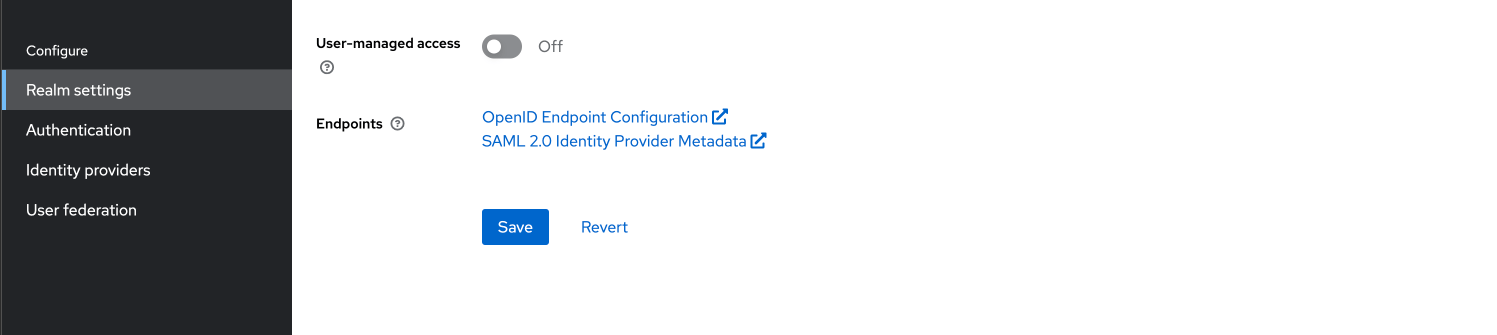
7
Navigate to the settings page on Cosmo.
8
Click on Connect.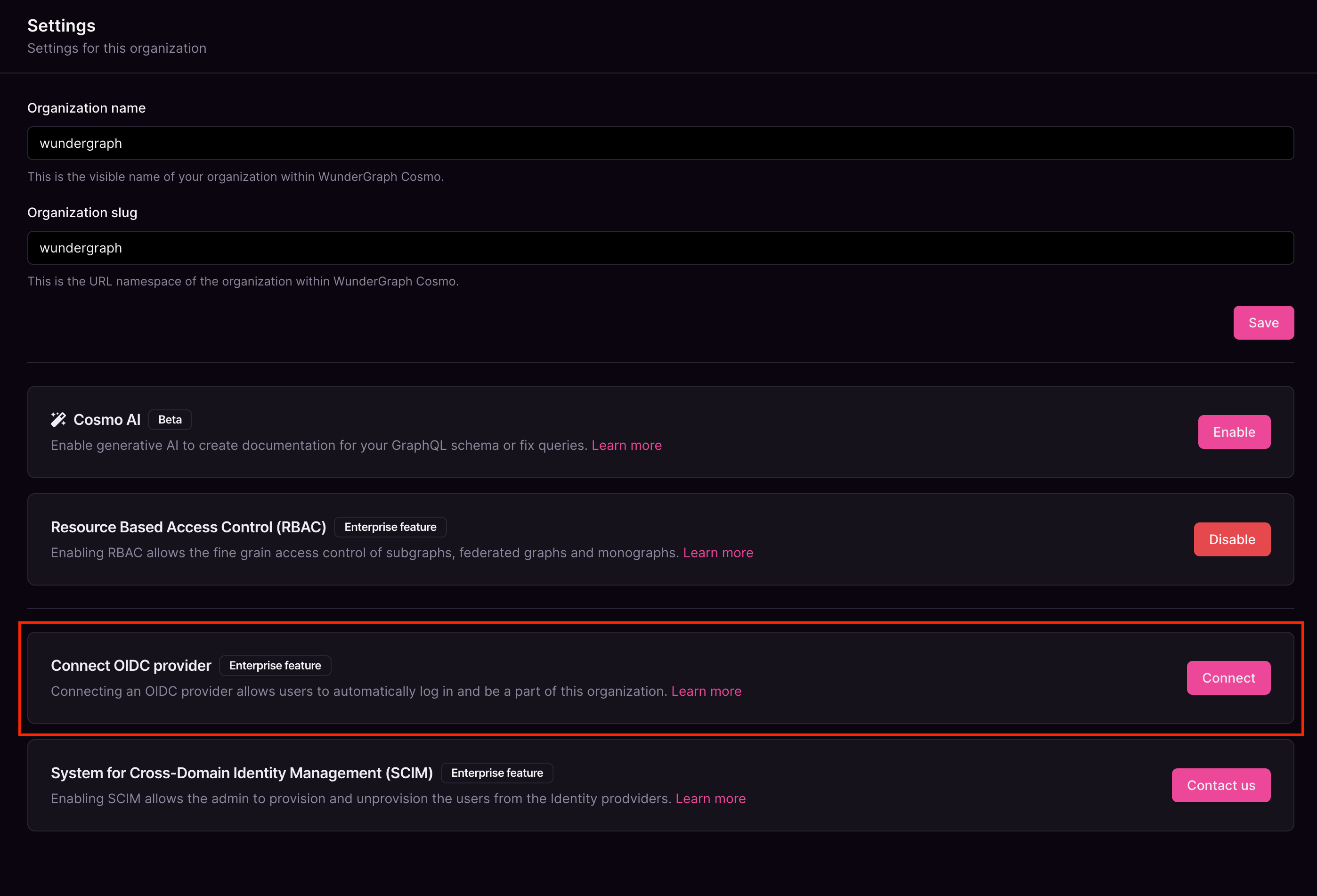
9
Give the connection a name, paste the OpenID Endpoint Configuration copied before, into the Discovery Endpoint,and paste the Client ID and Client secretcopied before into the Client ID and Client Secret fields respectively, and then click on Connect.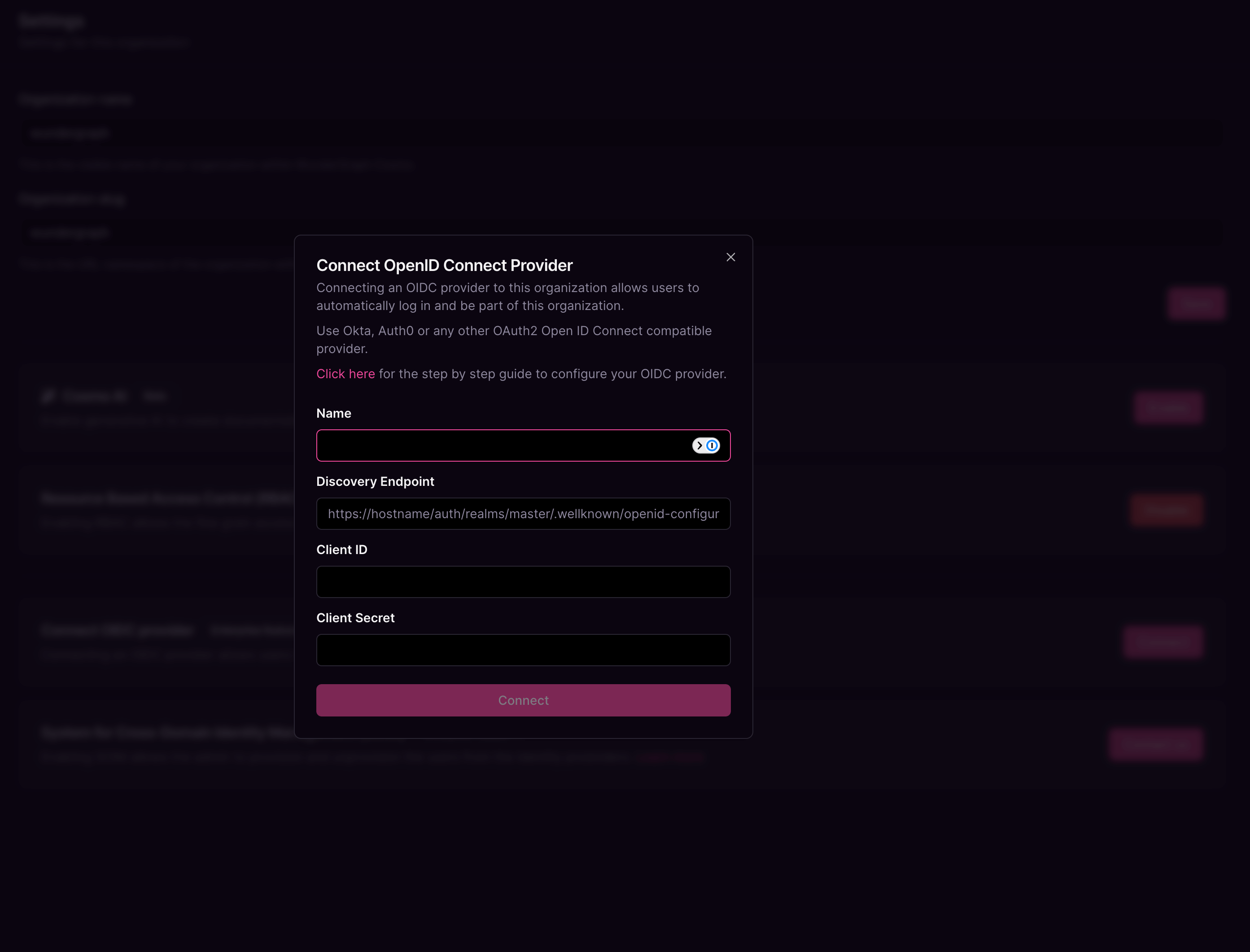
10
Configure the mapping between the roles in Cosmo and the user groups in Keycloak. The field Group in the provider can be populated with the name of the group or a regex to match the user groups. Once all the mappers are configured, click on Save.
11
Copy the sign-in and sign-out redirect URIs displayed in the dialog.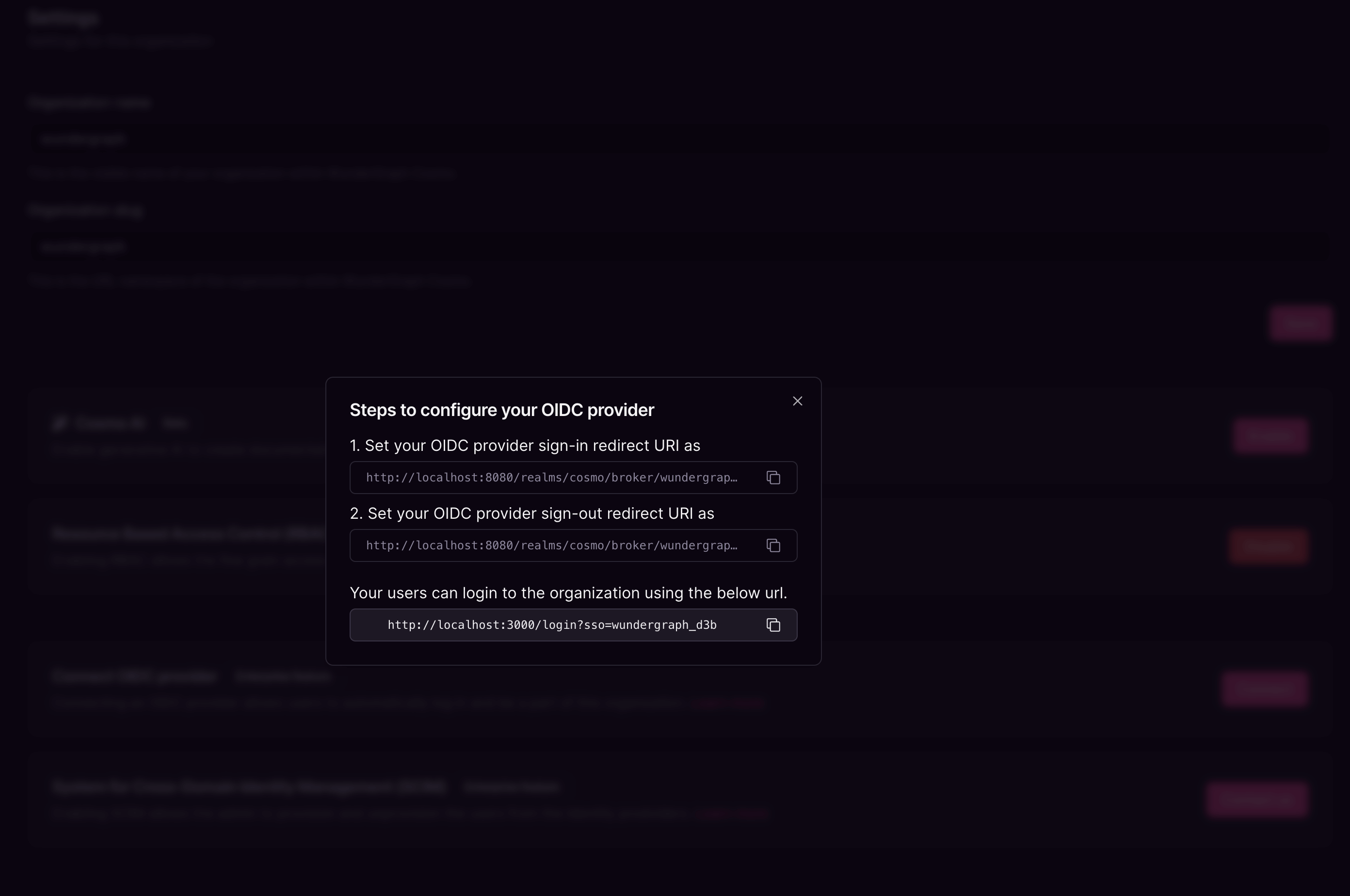
12
Navigate back to the client created on Keycloak and populate the Valid redirect URIs and Valid post Logout redirect URIs with the above-copied sign-in and sign-out URLs respectively. Click on Save.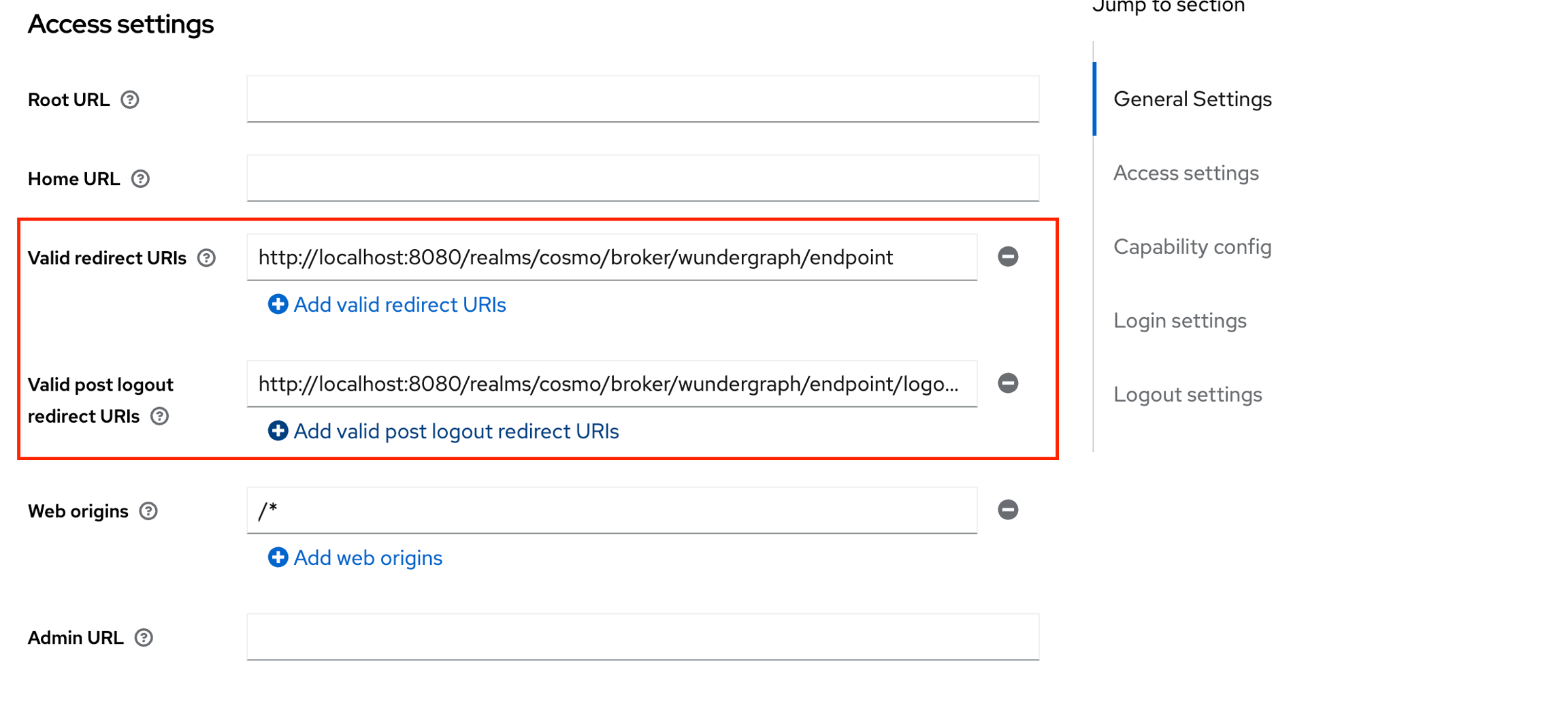
13
Navigate to the Client Scopes tab, click on the first client scope(usually would be ${clientID}-dedicated), and then click on Configure a new mapper.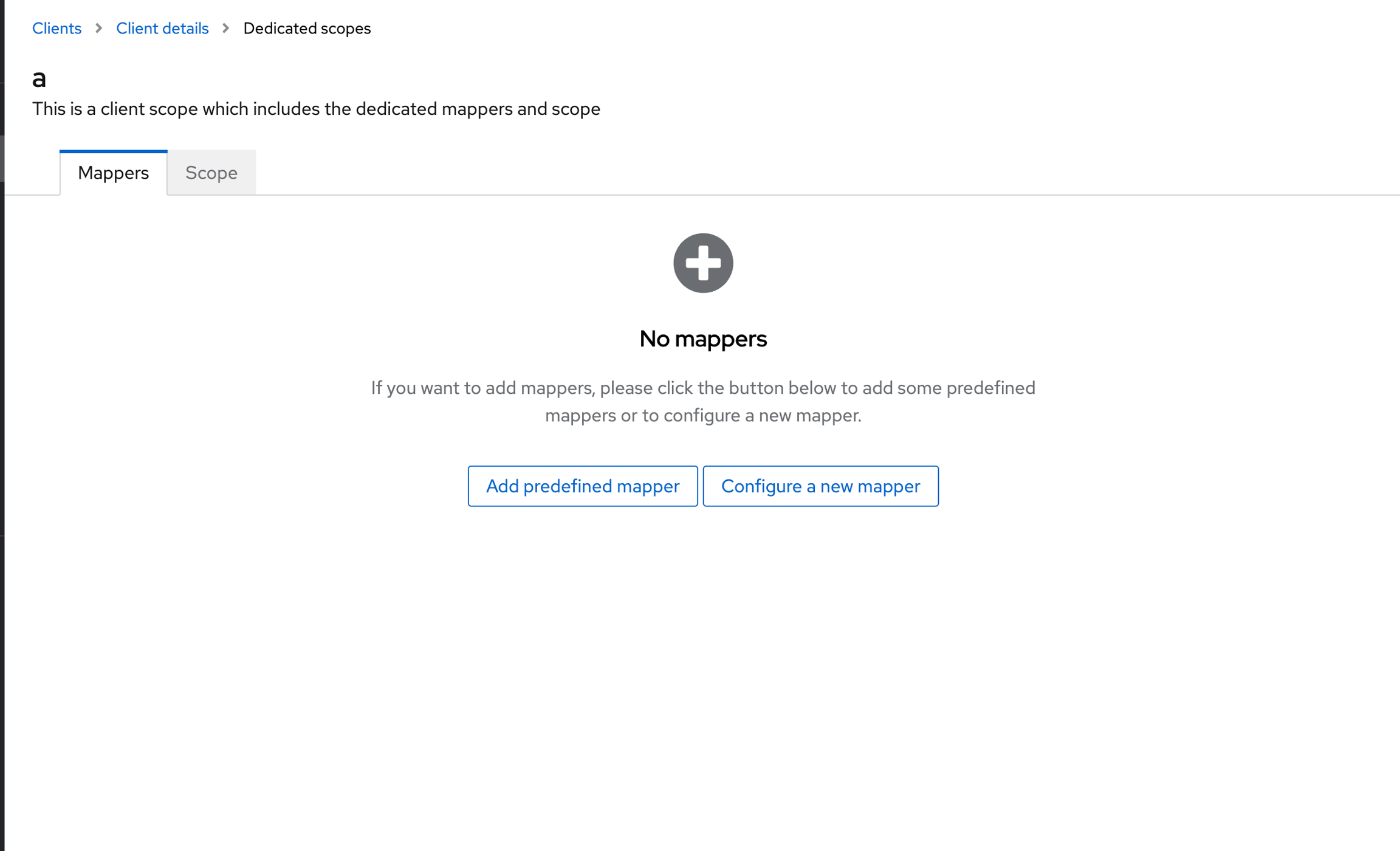
14
Select Group Membership.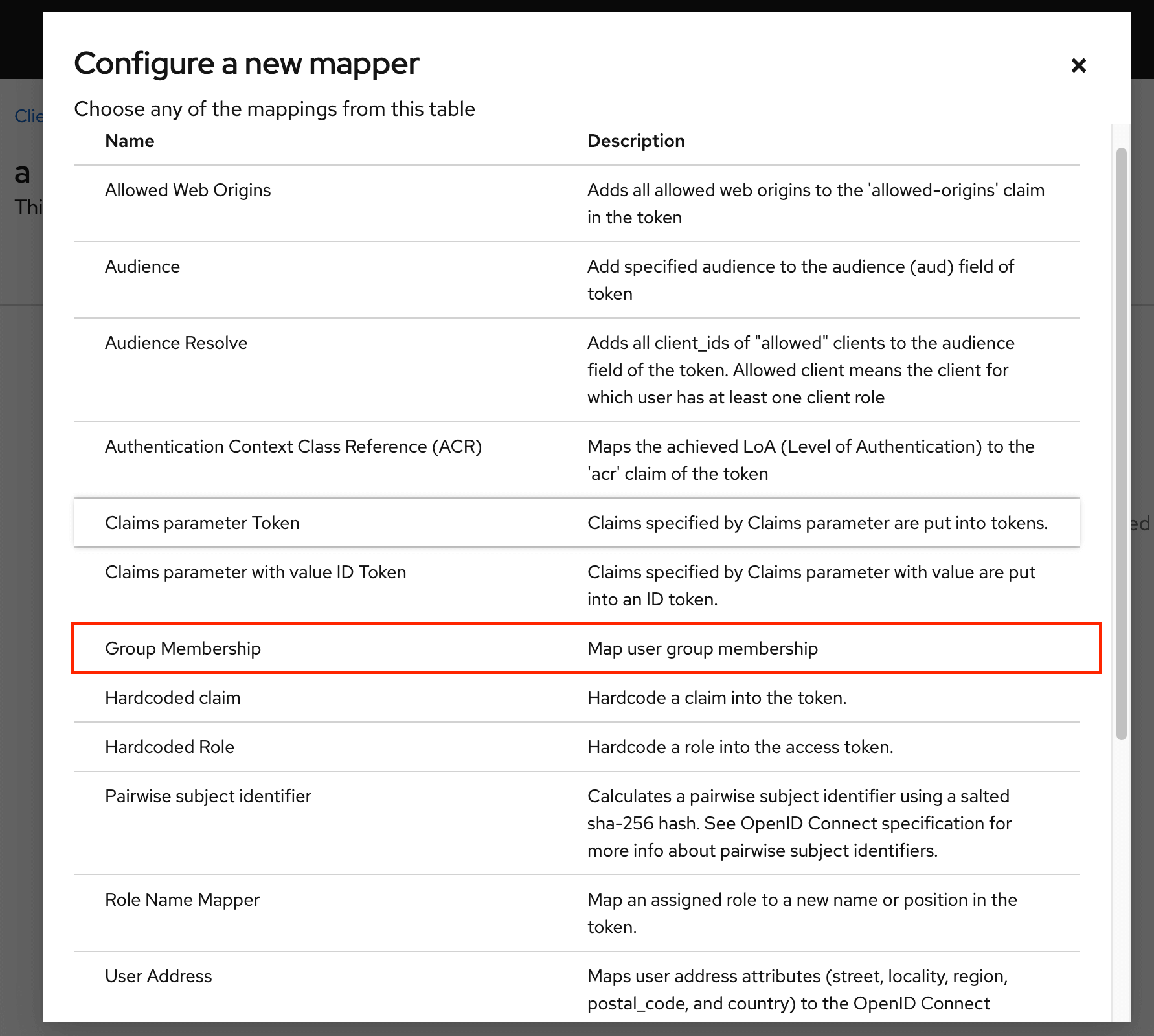
15
Give the mapper a name, then populate the Token Claim Name with “ssoGroups” and then click on Save.
16
Now you can assign users/groups to the application, and those users will be able to log into Cosmo using the URL provided on setting up the provider.